What the RapportScore connector does
You finish a tough call and open ChatGPT to ask what went wrong. It can't help. It wasn't on the call.
The RapportScore connector gives the AI assistant you already use a way into your RapportScore account, with your permission. After that you can ask about your own recorded conversations in plain English, and the answer comes back with the exact moment, the quote and the time stamp.
The connector runs on MCP, short for Model Context Protocol. It's an open standard that AI apps use to plug into other tools. You don't need to know anything about it to use it. You paste one address, sign in to RapportScore once, and click Approve.
Look up your calls and scores
Pull up any recorded conversation, its scores and your progress over time, so that you can check a number without opening another tab.
Find the exact moment
Ask where a conversation turned and get the quote and time stamp, so that you review what was said word for word.
Ask your RapportScore coach
Ask why a score moved or what to work on. The coach answers from your call history and names the calls it used, so that you know what to practice next.
Finish what's waiting on you
New uploads sometimes need you to say who was speaking or how the call ended. The AI walks you through it, so that your calls finish analysis.
Upload a recording
Send a new conversation to RapportScore from the chat you're already in, so that analysis starts while the call is fresh.
Coach your team
If you have the coach role on a team, pull its reports and recent session recaps, so that you can prep a coaching session in minutes. If you lead one, check how it is doing.
Before you start
- A RapportScore account on a paid plan. The free plan doesn't connect AI apps yet. See plans if you need to upgrade.
- An AI app plan that allows custom connectors. Check the table below.
- A computer. You add the connector on the web or desktop app. Some phone apps can use it once it's added.
- The connector address:
https://mcp.rapportscore.ai/mcp
Which plans can add the connector
| App | Plans | Where you set it up | Good to know |
|---|---|---|---|
| Claude | Free (one custom connector), Pro, Max, Team, Enterprise | claude.ai or the Claude desktop app | On Team and Enterprise, an owner adds it first. It shows up in the Claude phone app after you add it. |
| ChatGPT | Business, Enterprise, Edu. Pro can connect with read access. | chatgpt.com in a web browser | Needs Developer mode turned on. Pro accounts can look things up and ask the coach, but can't upload or change anything. |
| Perplexity | Pro, Max, Enterprise | perplexity.ai | On Enterprise, an admin may need to allow custom connectors first. |
| Grok | Grok accounts | grok.com | On Grok Business and Enterprise, an admin adds it in the xAI console first. |
| Grok Bot | Grok Bot beta (paid access) | The Grok Bot app for Mac, Windows, iPhone or Android | You add it by sending Grok Bot a chat message. Every Bot on your account can use it. |
Plans and menu names in these apps change often. Checked September 2026.
The RapportScore sign-in step
Every app sends you to the same RapportScore page. Here's what to check before you click Approve.
Sign in to RapportScore first, at app.rapportscore.ai, in the same browser. Then start the connection from the AI app. You'll land on a page titled Connect an agent to your account.
- 1
Check the app name. Under Requesting application you should see the app you're connecting, such as ChatGPT or Claude.
Check where you'll be sent. Under After you approve, you will be sent to you should see that app's website, such as chatgpt.com. If either one looks wrong, click Deny.
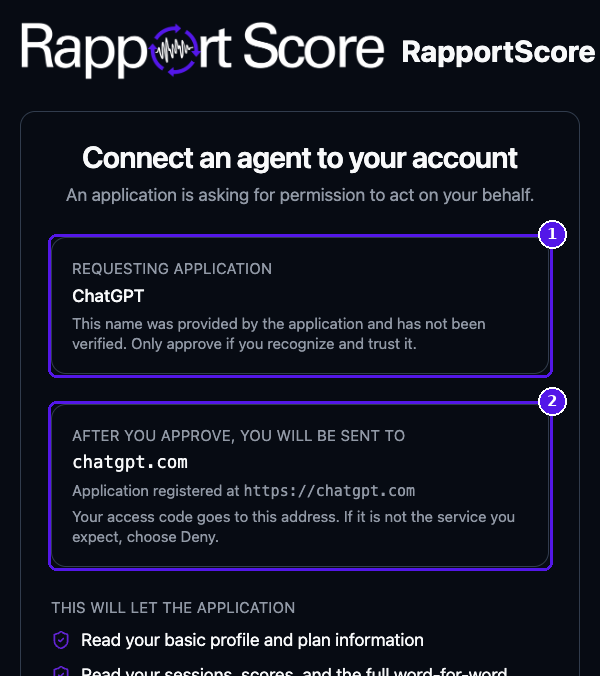
1: the app asking for access. 2: the website you'll return to. - 2
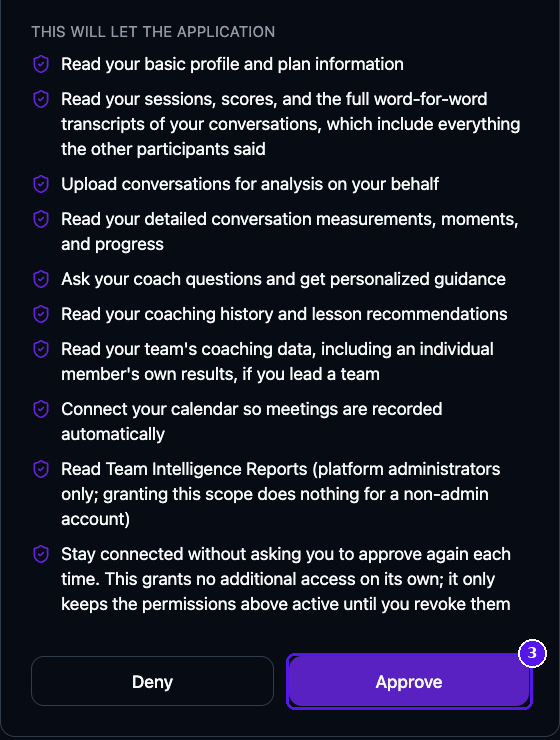
Read the list and click Approve. The list shows everything the app will be able to do in your account. It includes reading full transcripts of your conversations, which contain what the other people said. Only approve apps you trust with that.
The last item keeps you connected, so you won't have to approve again every time. The connection stays until you disconnect it.
Claude
Set it up
- 1
Open Settings (click your name in the bottom-left corner, then Settings). In the left menu, under Customize, click Connectors.
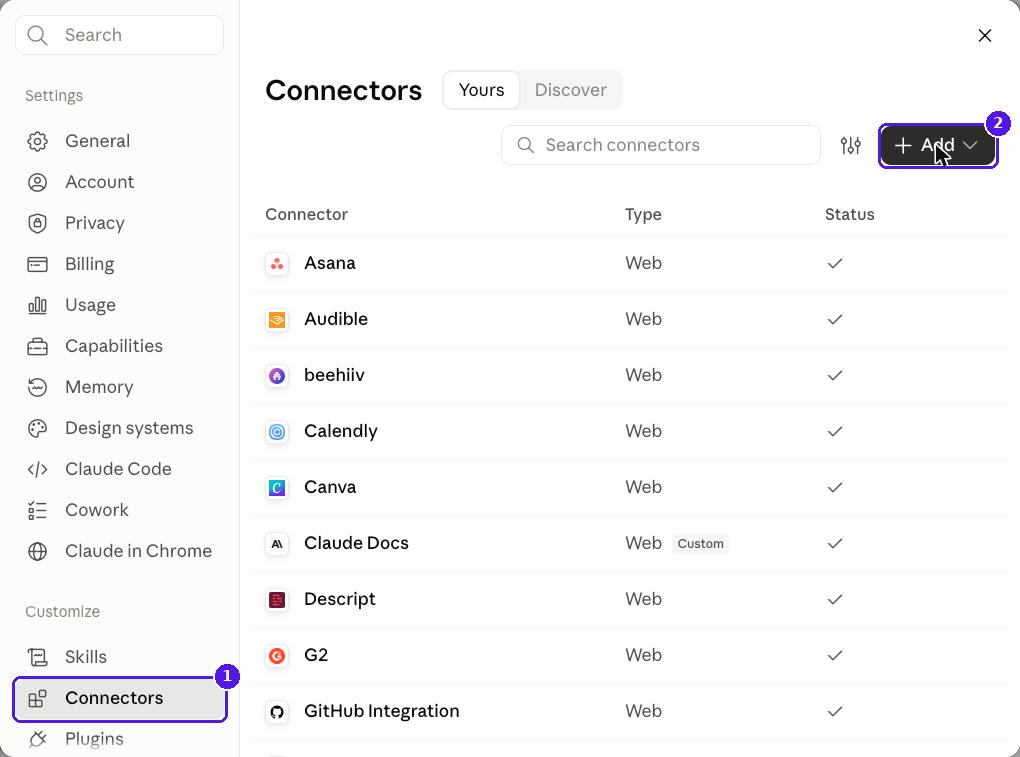
1: Connectors. 2: the Add button. - 2
Click + Add, then Add custom connector.
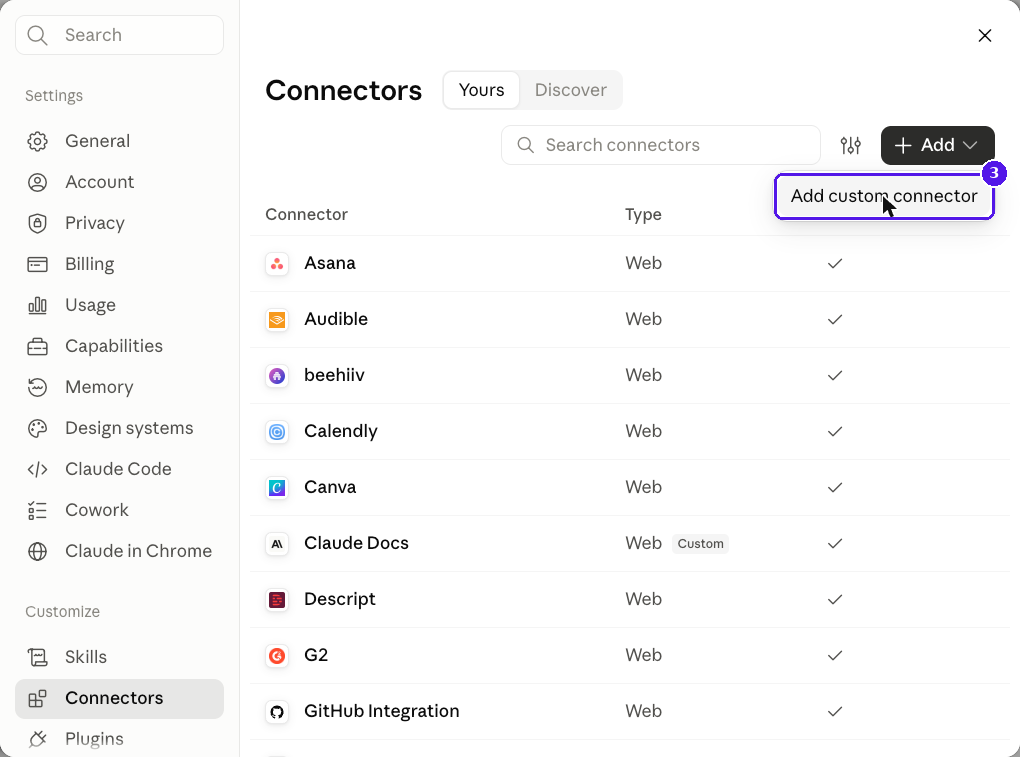
- 3
Fill in the two fields and click Continue.
- Name
- RapportScore
- MCP server URL
https://mcp.rapportscore.ai/mcp
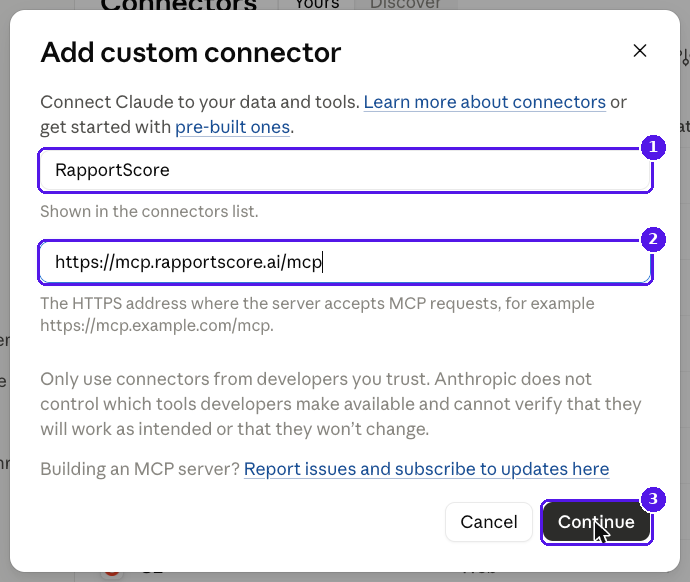
- 4
Claude checks the address and sends you to RapportScore. Follow the sign-in step and click Approve. If Claude shows a Connect button first, click it.
- 5
Optional: choose what Claude may do on its own. Click RapportScore in your connector list. Each tool has three buttons: the check mark lets Claude use it freely, the hand makes Claude ask you first, and the circle blocks it. Read-only tools just look things up. The write tools, such as uploading a recording or labeling speakers, change your account, so many people set those to ask first.
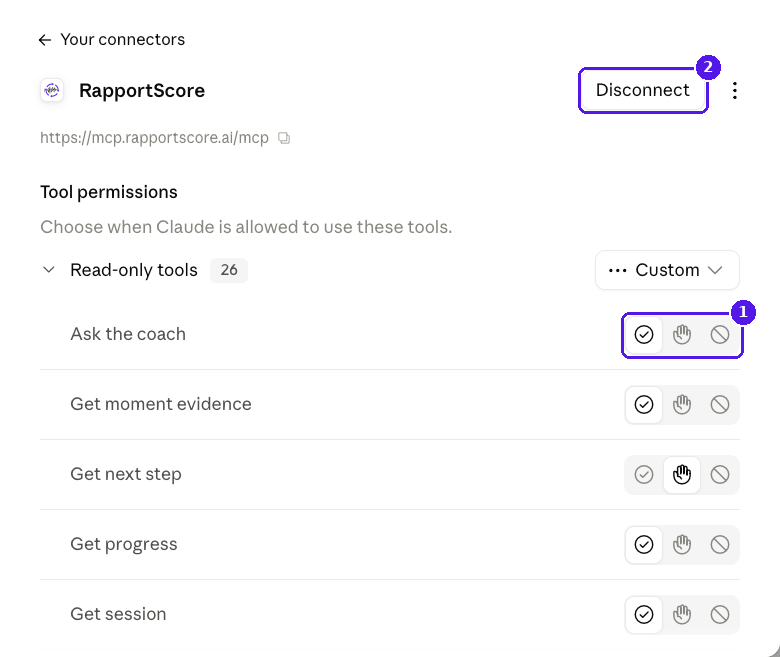
1: permission buttons for each tool. 2: Disconnect.
Use it
In any chat, click the + button, point to Connectors and make sure RapportScore is switched on. Then ask your question.
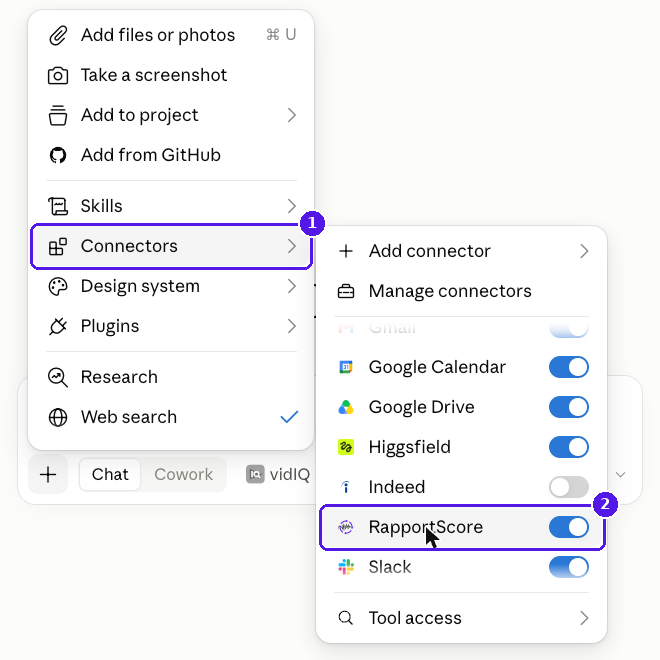
On your phone: once you add RapportScore on the web or desktop, it appears in the Claude phone app under the same + button.
Team and Enterprise plans: an owner adds the connector in Organization settings, then each person clicks Connect on it. If Claude says “A connector with this URL already exists in your organization,” your owner already added it. Find RapportScore in your connector list and click Connect.
To disconnect: Settings, Connectors, RapportScore, then Disconnect.
ChatGPT
Set it up
- 1
Turn on Developer mode. Open Settings, click Security and login, scroll to Developer mode and switch it on. ChatGPT labels it “Elevated risk” because it lets you add connectors OpenAI hasn't reviewed.
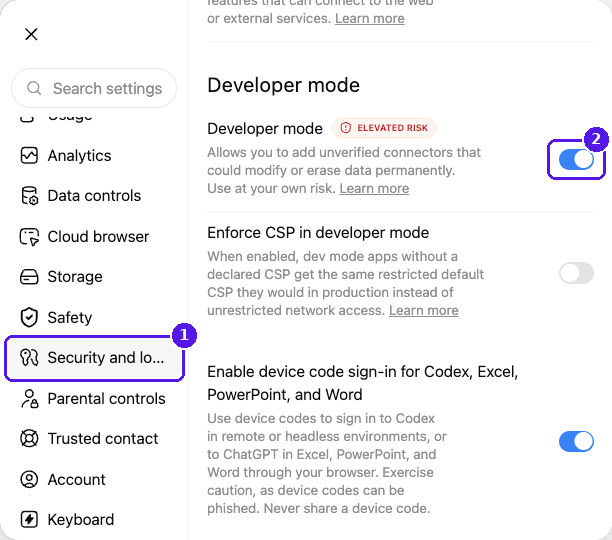
1: Security and login. 2: the Developer mode switch. - 2
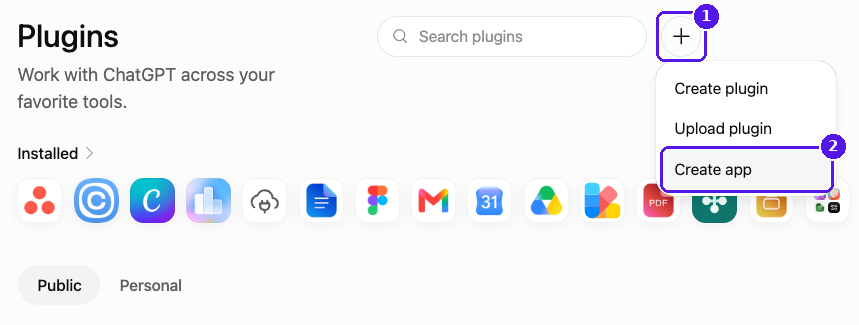
Go to the Plugins page. In Settings, click Plugins, scroll down and click Browse plugins. You can also go straight to chatgpt.com/plugins. Click the + button next to the search box, then Create app.
- 3
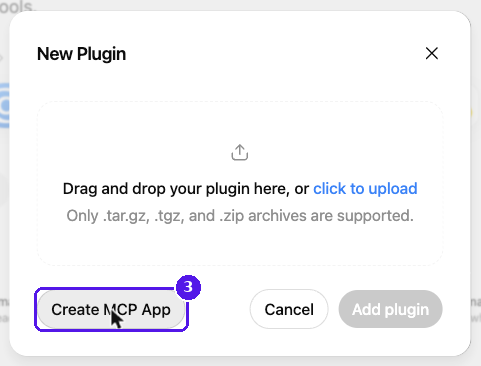
In the New Plugin window, click Create MCP App.
- 4
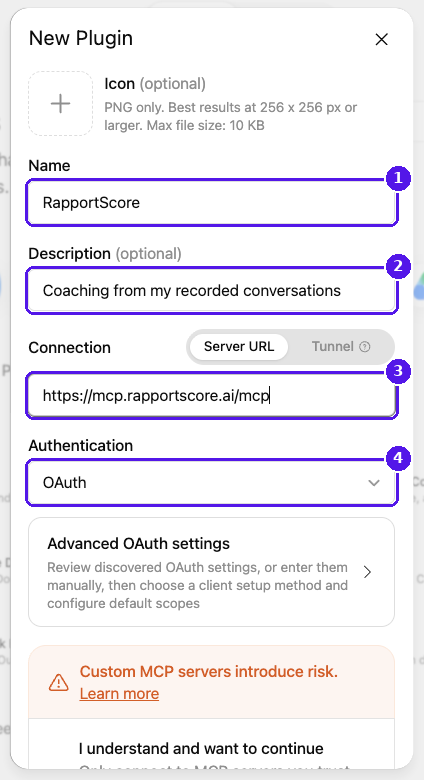
Fill in the form. Leave Advanced OAuth settings alone. RapportScore sets those up for you.
- Name
- RapportScore
- Description
- Optional. Try "Coaching from my recorded conversations."
- Connection
- Server URL:
https://mcp.rapportscore.ai/mcp - Authentication
- OAuth
- 5
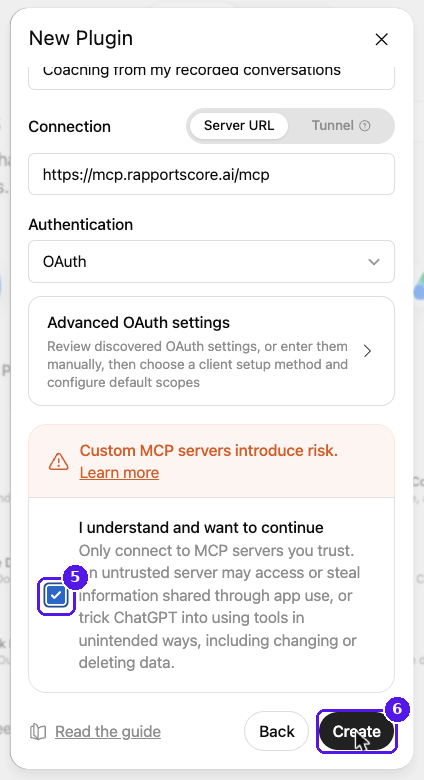
Scroll down, check I understand and want to continue, then click Create.
- 6
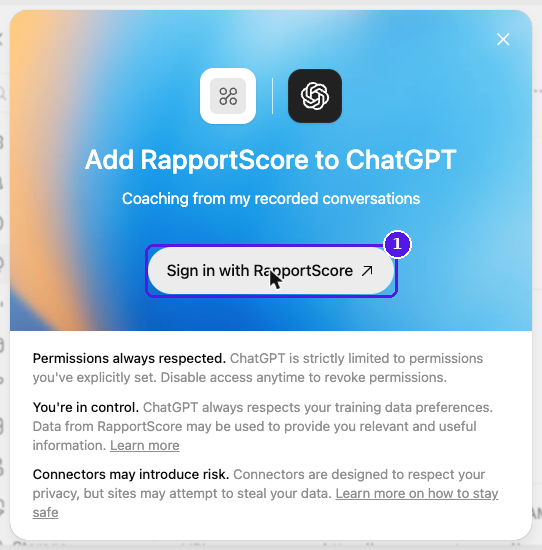
Click Sign in with RapportScore. Follow the sign-in step and click Approve.
- 7
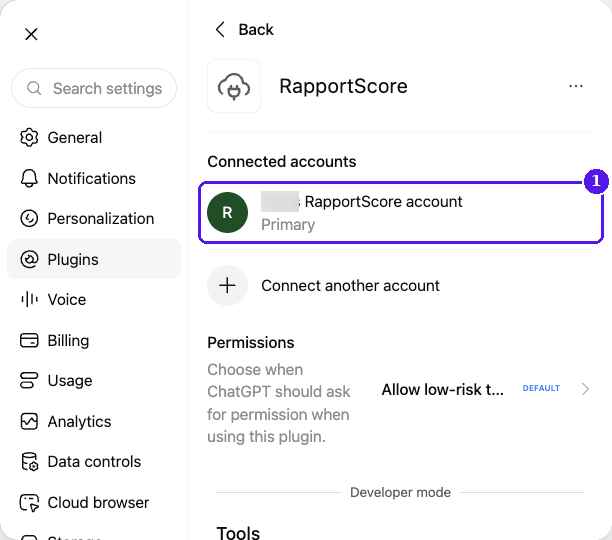
You're back in ChatGPT. Under Connected accounts you'll see your RapportScore account. That means it worked.
Use it
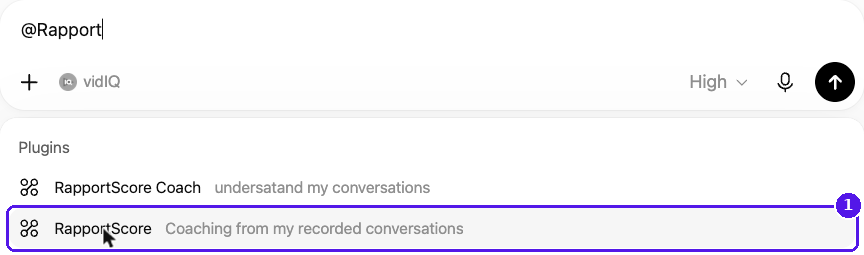
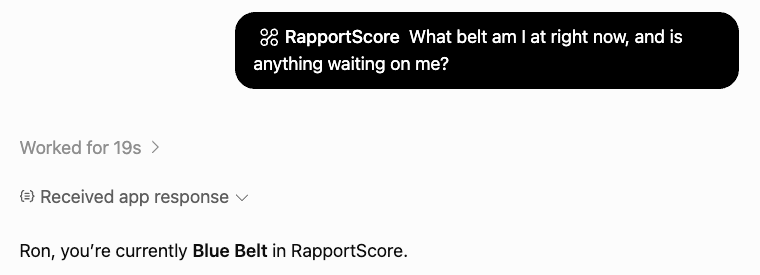
In a new chat, type @RapportScore, pick it from the list, then type your question. ChatGPT may ask your permission before it runs a tool. You can change that under Permissions on the RapportScore plugin page.
To disconnect: Settings, Plugins, RapportScore, then the ··· menu and Disconnect. Choose Delete to remove the app completely.
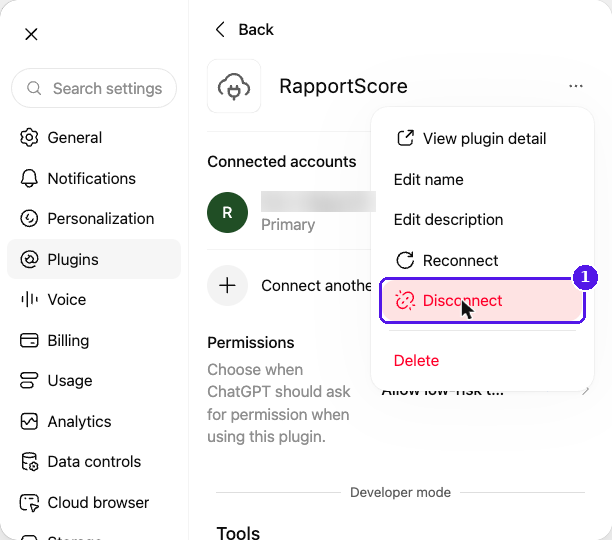
ChatGPT renames these menus often. If you see Apps or Connectors where this guide says Plugins, it's the same place.
Perplexity
Set it up
- 1
Click Customize in the left sidebar, then open the Connectors tab.
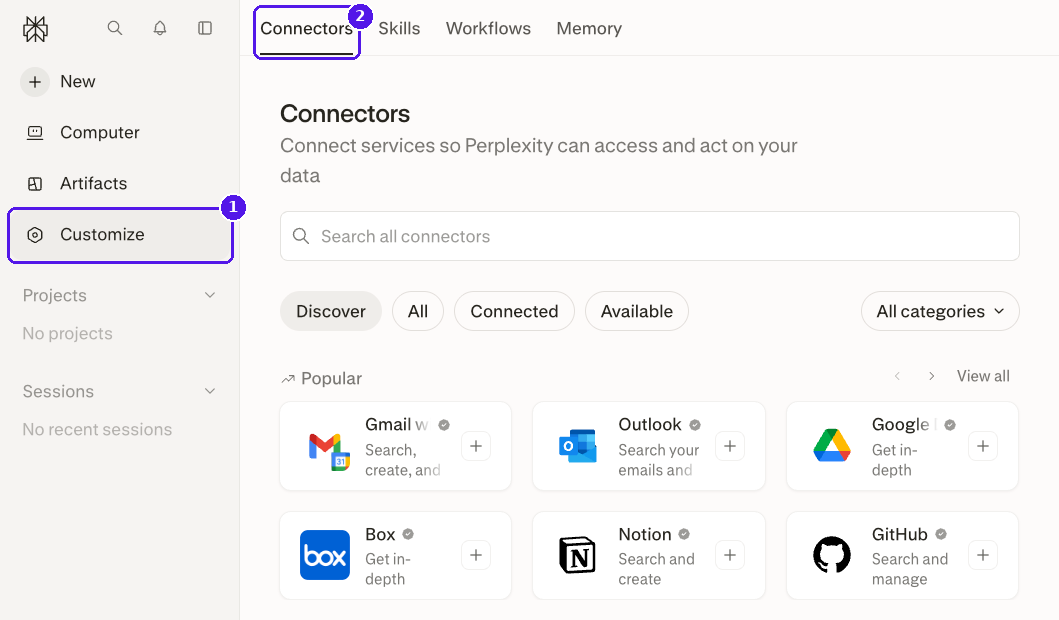
1: Customize. 2: the Connectors tab. Paid accounts also see a Custom connector button at the top right. - 2
Click + Custom connector at the top right, then choose Remote.
- 3
Fill in the form. Leave the client ID and secret blank. RapportScore registers Perplexity on its own.
- Name
- RapportScore
- MCP Server URL
https://mcp.rapportscore.ai/mcp- Authentication
- OAuth
- Transport
- Streamable HTTP
- 4
Check the box that confirms you understand the risks of custom connectors, then click Add.
- 5
Click the new RapportScore card to sign in. Follow the sign-in step and click Approve.
Use it
Turn RapportScore on from the sources and connectors menu in the question box, then ask your question. Perplexity asks you to confirm before it runs an action.
To disconnect: Customize, Connectors, then the ⋮ menu on the RapportScore card.
Grok
Set it up
- 1
On grok.com, click Plugins at the bottom of the left sidebar. You can also go straight to grok.com/connectors.
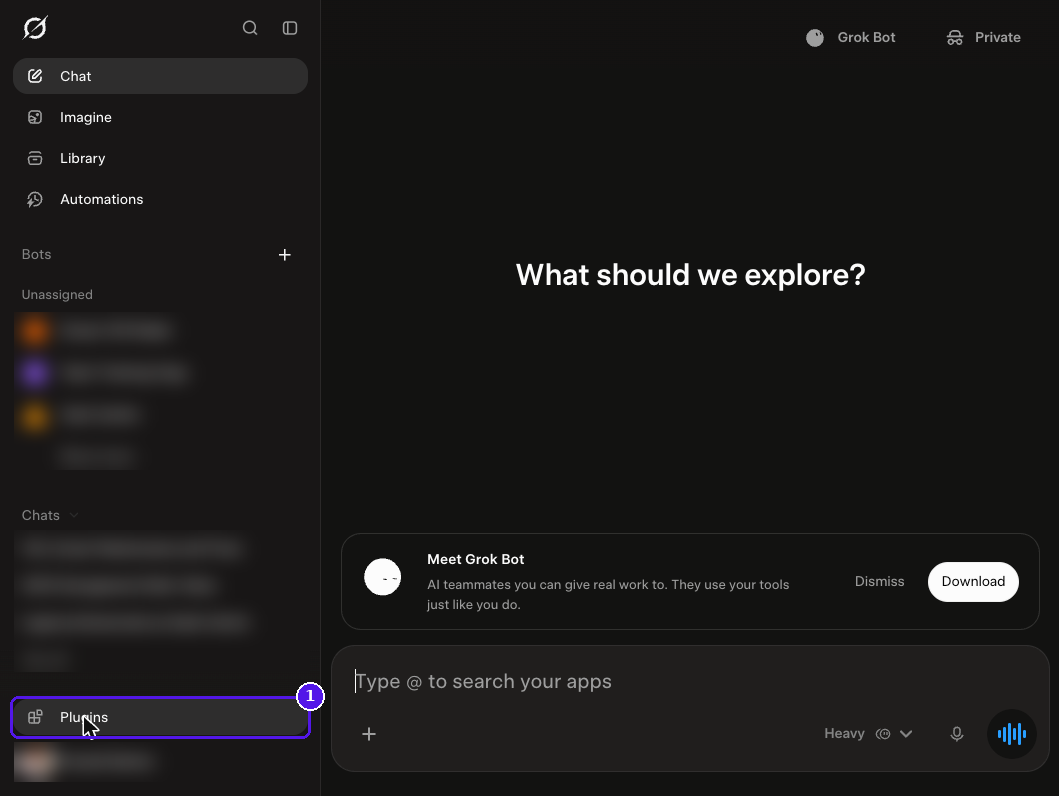
- 2
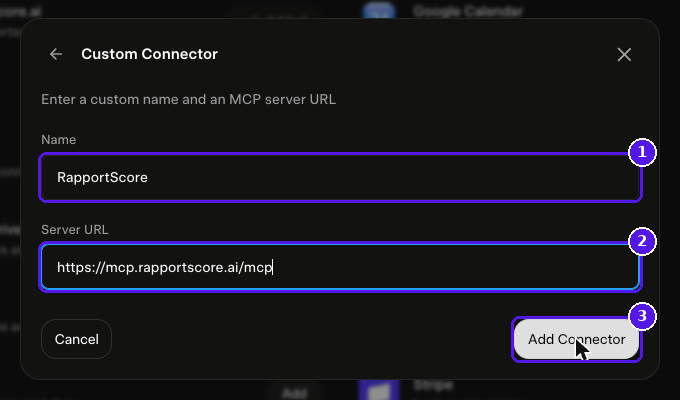
On the Connectors tab, click New Connector, then Custom.
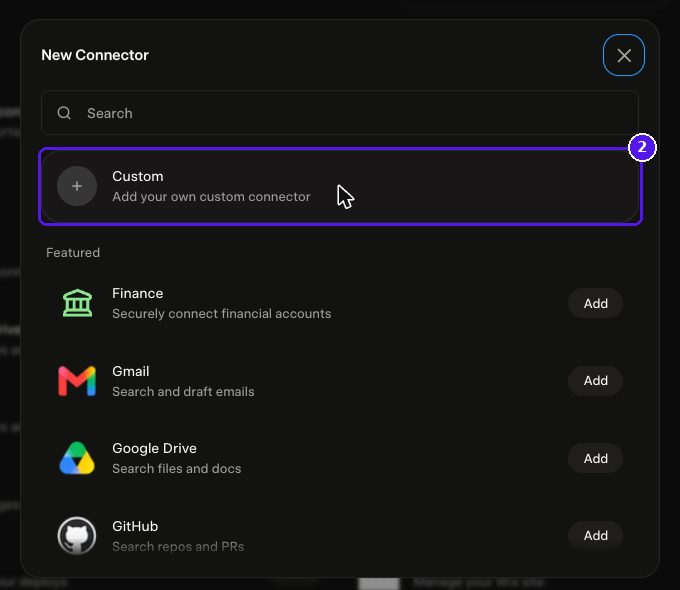
- 3
Fill in the two fields and click Add Connector.
- Name
- RapportScore
- Server URL
https://mcp.rapportscore.ai/mcp
- 4
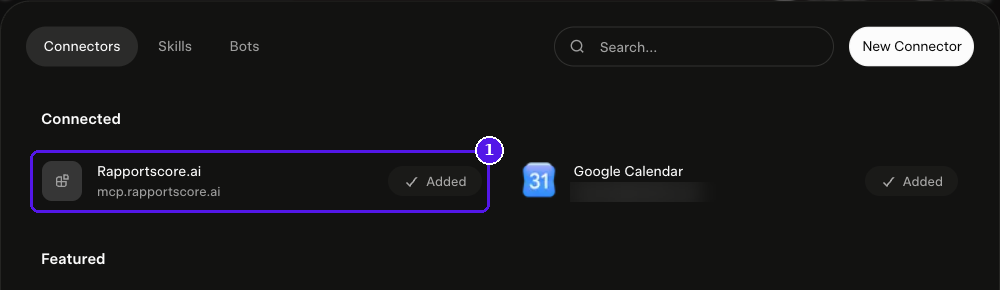
Follow the sign-in step and click Approve. RapportScore now shows under Connected.
Use it
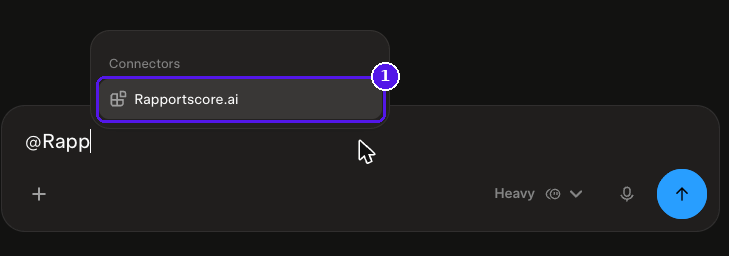
Type @ in the message box, pick RapportScore and ask your question. Grok picks which RapportScore tools to use on its own.
Business and Enterprise: an admin adds the connector in the xAI console before members can use it.
To disconnect: click Plugins, click RapportScore, then Disconnect. The same window has Reauthenticate if you ever need to sign in again.
Grok Bot
Grok Bot is xAI's app for building personal AI agents, called Bots. You connect RapportScore once and every Bot on your account can use it.
Set it up
- 1
Open the Grok Bot app. In any chat, send this message:
Add a custom MCP server called RapportScore at https://mcp.rapportscore.ai/mcpGrok Bot repeats the name and address back to you. Confirm them.

- 2
Grok Bot posts a sign-in card in the chat. Click it, follow the sign-in step and click Approve.
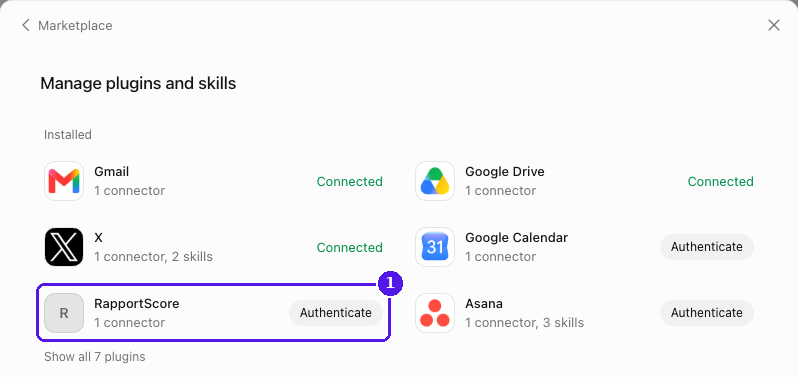
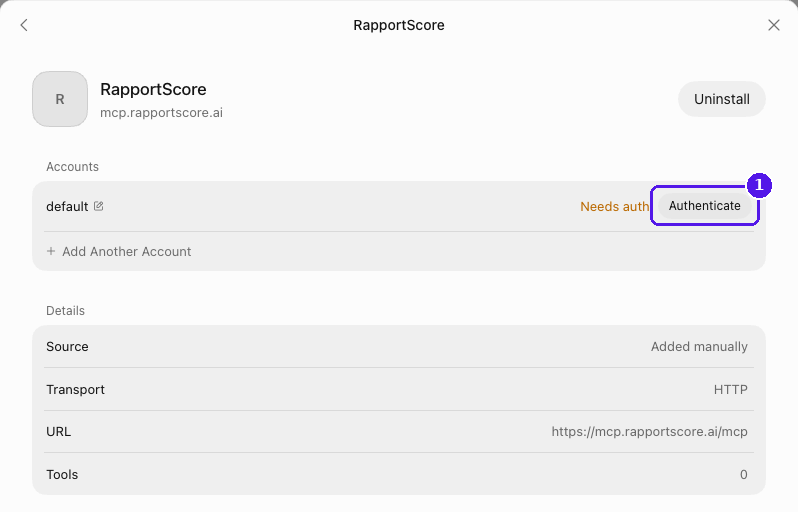
If you close the card by mistake, click Marketplace at the bottom of the sidebar, then the installed count at the top right. Find RapportScore and click Authenticate.
- 3
Check that it worked. Click RapportScore on the same screen. Once you're signed in, Tools shows a number above zero.
Use it
Type @ in the message box, pick RapportScore, and ask. You can also give a Bot a routine that uses RapportScore, such as a Monday morning check of what's waiting on you.
To remove it: Marketplace, the installed count, RapportScore, then Uninstall. You can also ask Grok Bot to remove the RapportScore MCP server.
What to ask
Talk to it like you'd talk to a coach who watched every call. A few to start with:
Good to know
Coach questions count toward your daily limit
Each question the AI sends to your RapportScore coach uses one from your daily allowance, whether you ask from Claude, ChatGPT or the RapportScore app. Quick lookups, like a score or a transcript, don't count.
Results describe behavior
RapportScore measures what happened in the conversation, such as questions, pauses, pace and turn-taking. Use results as evidence about how a conversation went. They make no judgment about anyone's honesty, intent or feelings.
Belts cover your whole rapport
Your belt reflects all of your rapport measurements together. A single skill never has its own belt.
A missing score means it didn't run
If a measurement is missing from a call, it didn't run on that recording. Ask the AI what's missing from the call and it will check.
The AI app sees what you approve
Once you approve, the app can read your calls, including full transcripts. What it keeps depends on that app's own data settings, so check them. Only upload recordings you have permission to record and share.
Connect as many apps as you like
Each app needs its own approval. Disconnecting one leaves the others connected.
Troubleshooting
Start with one call
Upload a recent conversation, connect your AI, and ask it where the call turned.
Create your RapportScore accountAlready have an account? Sign in and head back up to the setup guides.