AutoJoin Now Follows You to Every Platform You Meet On
Your note taker works the same on every meeting platform you use. Connect one calendar and AutoJoin captures your Zoom, Teams, Google Meet, Webex, GoTo, and Slack calls automatically, so every conversation gets scored without an upload.

RapportScore.ai Team
Platform Integrations
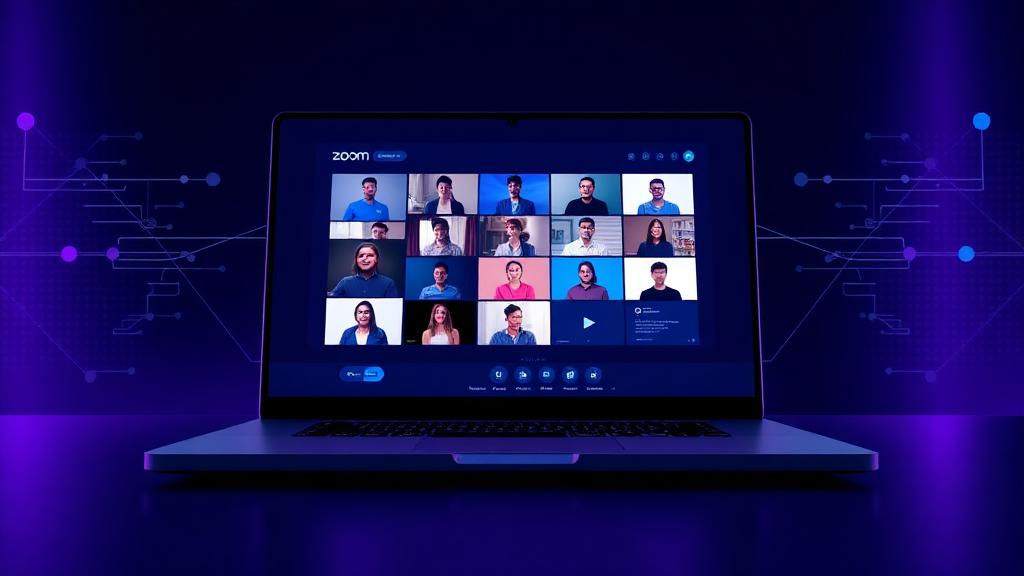
One Note Taker, Every Platform
Most sales teams record their calls, but only if someone remembers to hit record and share the file. AutoJoin removes that step. Connect your Google or Outlook calendar once, and your note taker automatically joins meetings that have a video link, no matter which platform they're on.
AutoJoin supports Zoom, Microsoft Teams, Google Meet, Webex, GoTo, and Slack calls. You don't pick a platform to integrate with. You connect a calendar, and every meeting on it is covered.
Name It, Then Send It
Before you share an invite link, set a Note Taker Display Name from Meeting Integrations. That's the name other attendees see in the participant list, so pick something that clearly reads as a recording bot, not a person.
Once your calendar is connected, AutoJoin needs nothing further: it joins meetings with video links on its own. To send the note taker to a meeting that isn't on your calendar, paste the meeting link into "Send Note Taker to a Meeting," or share your Quick Invite Link with anyone who needs to bring it into a call without logging in.
What the Host Has to Allow
The note taker joins like any other participant, so it needs what any guest needs: a working meeting link, the correct passcode if the meeting has one, and a spot in the meeting if there's a participant cap. A registration requirement or a sign-in requirement will keep it out, the same way it would keep out a guest who hasn't been added. A waiting room keeps it out until the host lets it in.
If the note taker can't get in, you'll get an email explaining what happened (the meeting wasn't found, the passcode was wrong, the meeting required registration or sign-in, or the meeting was full) so you know exactly what to fix before the next call.
What You Get Back
Once the recording finishes, RapportScore transcribes the conversation and scores it across the seven Rapport Dimensions. You get a Rapport Score, a belt-scoped lesson recommendation for your weakest dimension, and the option to practice that lesson live with Ask Alex before your next call.
Ask Coach can also answer questions about any call your note taker captured: what happened, where the conversation shifted, and what to work on next.
Frequently Asked Questions
Which meeting platforms does AutoJoin support?
AutoJoin's note taker joins Zoom, Microsoft Teams, Google Meet, Webex, GoTo, and Slack calls automatically once you've connected a calendar.
How do I turn AutoJoin on?
Open Calendars from your profile menu, connect your Google or Outlook calendar, and turn on the Auto-join switch for that calendar. Every meeting with a video link on that calendar is covered from then on.
Can I send the note taker to a meeting without connecting a calendar?
Yes. Paste any meeting link into "Send Note Taker to a Meeting," or use your Quick Invite Link to bring it into a call on the spot.
What does the analysis return once the meeting ends?
A Rapport Score across the seven Rapport Dimensions, a lesson recommendation matched to your weakest one, and a practice deep link with Ask Alex. You can also ask Ask Coach about the call directly.